
August 2, 2026
9 min read
Why Setup Choices Matter More Than Features
HubSpot's forecast tool sits on the Deal object but works as its own layer with specific rules.
The tool filters and aggregates based on three locked criteria:
- Close Date: Only deals closing in the viewed period appear
- Pipeline: Goals link to one pipeline, not all
- Owner: Rollups follow team hierarchy
Fewer than 50% of sales leaders have high confidence in their forecasts (Gartner). That gap comes from setup quality, not feature lists.
Setup choices determine whether your tool shows trusted numbers or misleading ones.
Deal Stages vs. Forecast Categories: The Key Difference
Most guides skip this distinction.
Getting it wrong breaks everything else.
Deal Stages are step-by-step markers with fixed odds. A deal moves from "Discovery" (10%) to "Proposal Sent" (60%) to "Contract Sent" (90%).
Forecast Categories work on their own. They capture rep confidence, not process steps.
| Trait | Deal Stages | Forecast Categories |
|---|---|---|
| Logic | Linear, auto | Judgment, manual |
| Tracks | Step progress | Rep confidence |
| Updates | Stage change | Human choice |
| Risk | Stage parking | Needs oversight |
The four categories:
- Commit: Rep stakes their name on closing this period
- Best Case: Path exists, but key factors remain open
- Pipeline: Early deals for coverage calculations
- Omitted: Deals excluded from the forecast
Why this matters: A deal is never "90% won"—it closes, or it doesn't. Stage odds create a false middle that flatters reps but misleads managers.
Forecast categories force human judgment to be separate from process steps. This matches how sales ops frameworks handle pipeline accuracy.
The "Auto-Map Forecast Categories" Trap
This toggle decides if your forecast shows human judgment or stage mapping.
When turned on, HubSpot maps deal stages to forecast categories on its own. Move a deal to "Contract Sent" and it becomes "Commit" without the rep saying so.
The setup choice:
- Enable auto-map: All deals get a category. Reps don't think about it.
- Disable auto-map: Reps pick categories manually. More work, better accuracy.
Our take: Turn it off for teams that know their process.
A deal should only be "Commit" when a human confirms the buying signal—not because a stage gate was crossed.
The hidden catch: Auto-map overwrites manual picks when stages change. A rep sets "Best Case," moves the deal forward, and auto-map resets it to "Commit." This corrupts data and confuses users.
Build a "Red Flag" workflow instead:
- Trigger: Forecast Category = "Commit" AND Close Date > This Month
- Action: Alert the rep
- Why: Commit deals with close dates outside the viewed period vanish from rollups—the "Hidden Deal" problem that trips up managers
Setting Up HubSpot Forecasting: Quick Walkthrough
This section covers the basic setup steps. Watch the video below for a visual walkthrough.
Requirements before you start:
- Sales Hub Professional or Enterprise
- Super Admin access (to configure settings)
- At least one pipeline with deal stages defined
Step 1: Access Forecast Settings
Navigate to Settings → Objects → Forecast. This is your central hub for all forecast configuration.
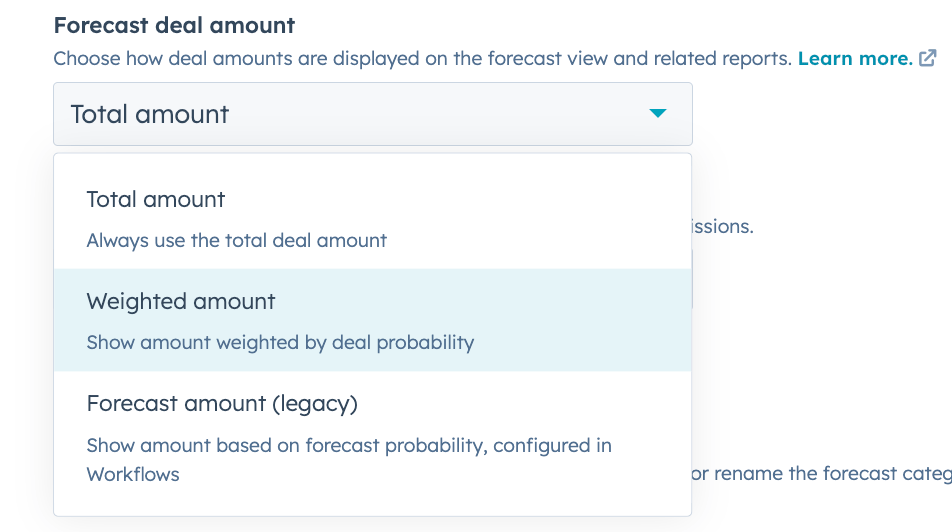
Step 2: Configure the Forecast Deal Amount
Choose how deal values appear in forecasts:
- Weighted amount (default): Amount × Deal probability. Best for probabilistic forecasting.
- Total amount: Full deal value regardless of stage. Better for simpler pipeline reviews.
Our recommendation: Start with Weighted amount if your deal probabilities are calibrated to reality.
Step 3: Set Your Forecast Period
Choose Monthly or Quarterly based on your sales cycle:
- Short sales cycles (< 30 days): Monthly
- Longer enterprise deals: Quarterly
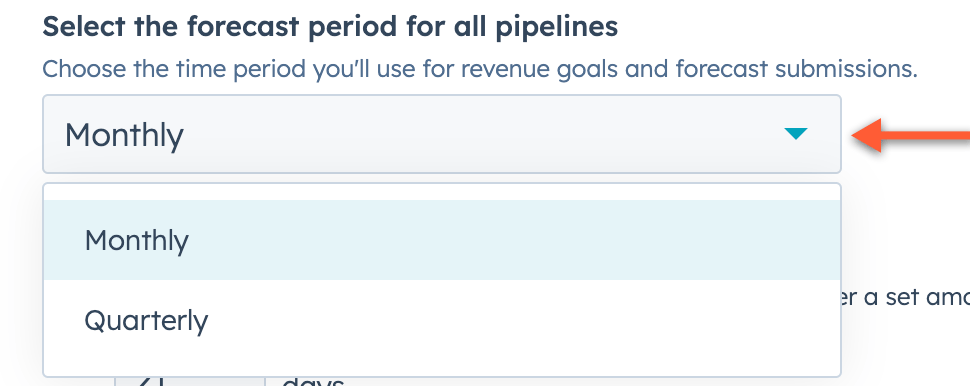
Warning: Changing this resets all goals and submissions. Get it right the first time.
Step 4: Map Forecast Categories to Pipeline
This is where the auto-map decision from the previous section comes into play.
- Click the Pipelines tab
- Select your pipeline
- For each forecast category (Not forecasted, Pipeline, Best Case, Commit, Closed won), select which deal stages belong to it
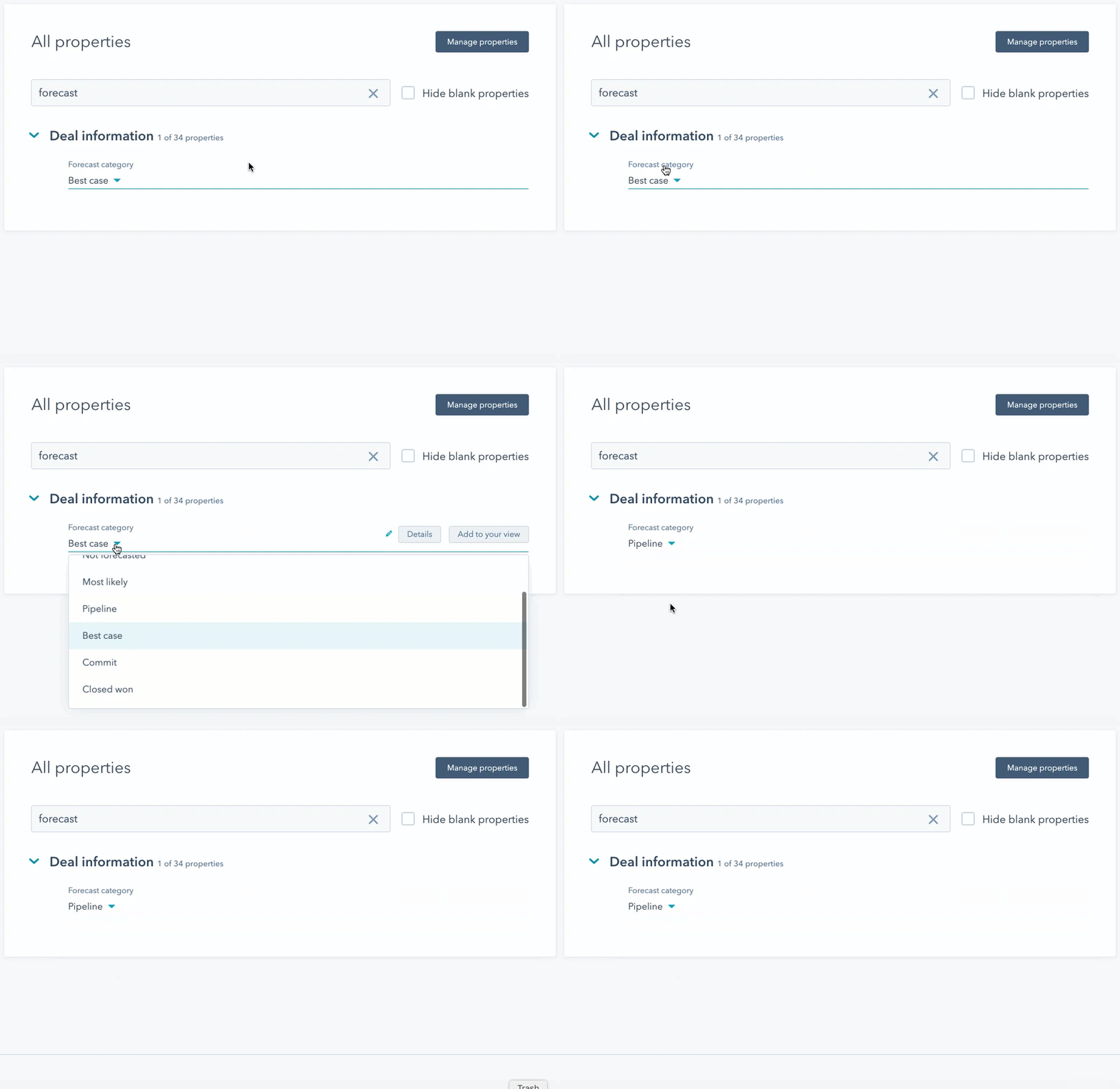
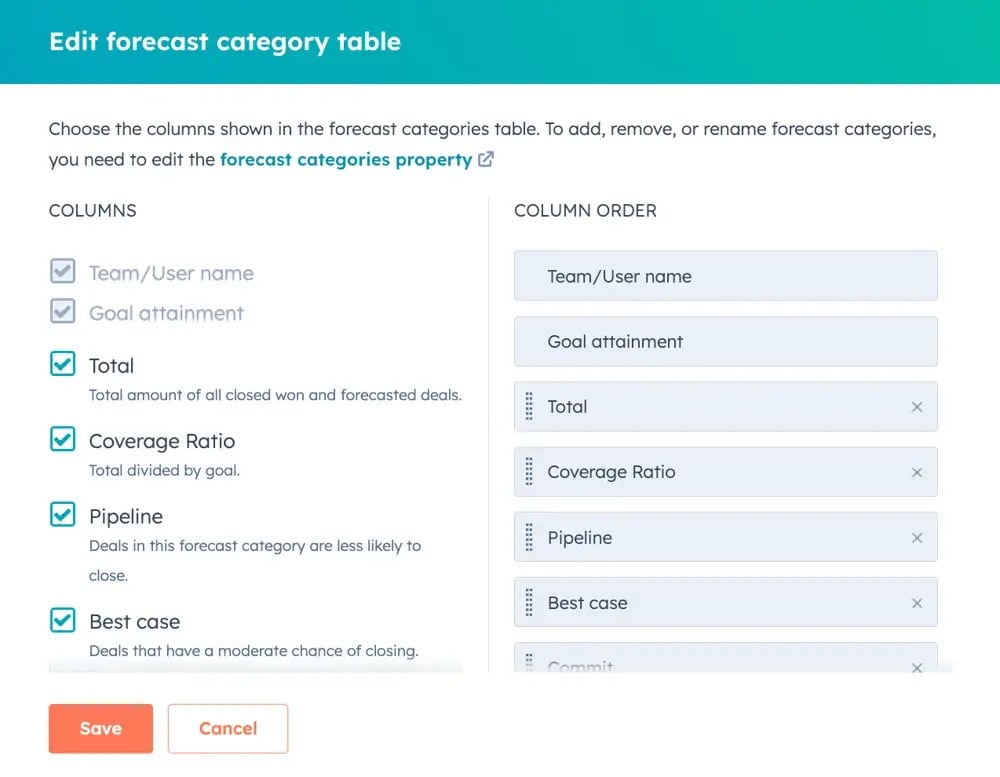
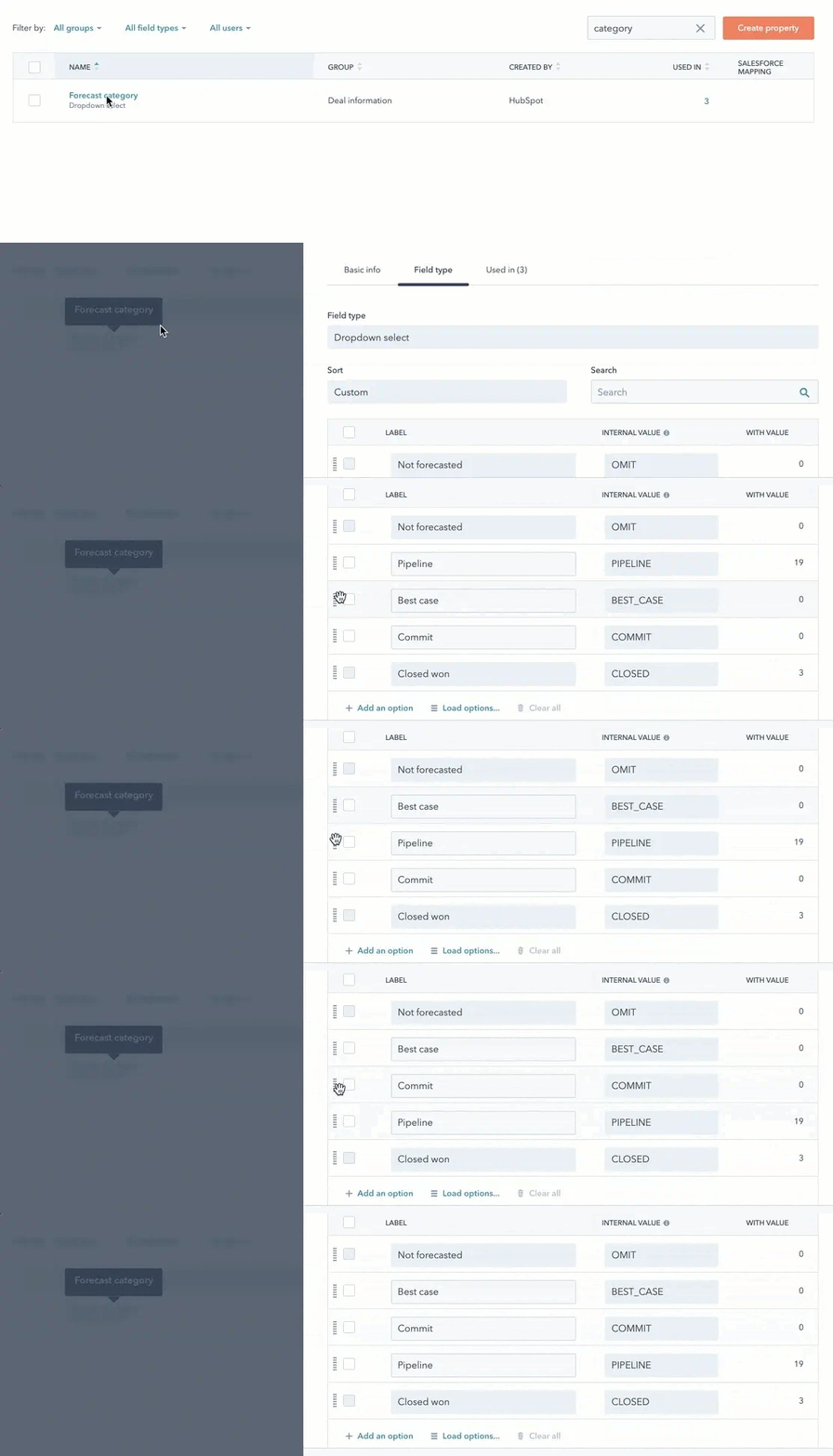
If you leave "Automate forecast categories" OFF (recommended), reps will manually set categories on deals.
Step 5: Set Forecastable Goals
- Go to Sales → Forecast
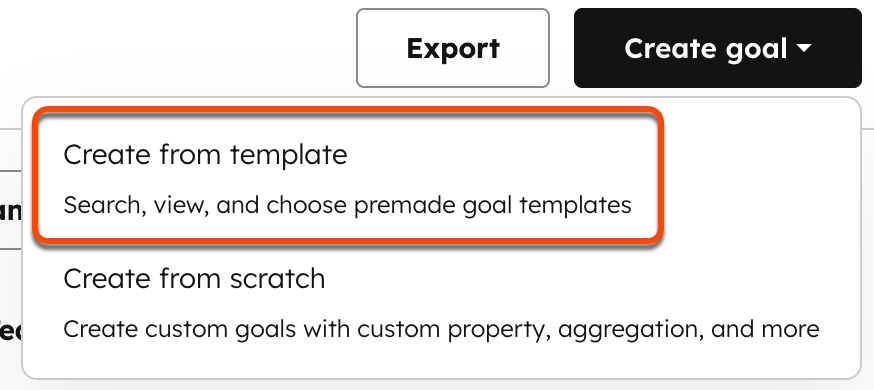
- Click Create goal
- Select Forecastable Revenue template
- Assign to users or teams
- Set period and pipeline
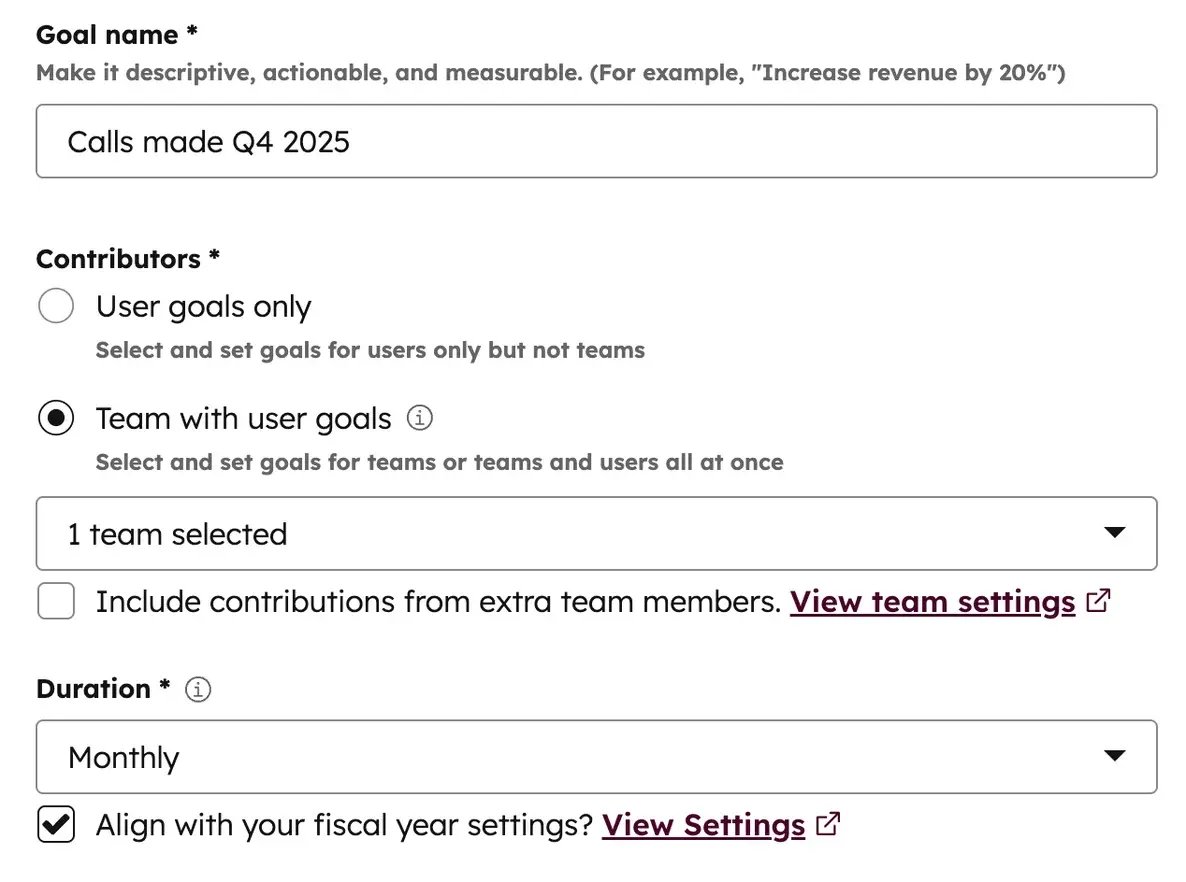
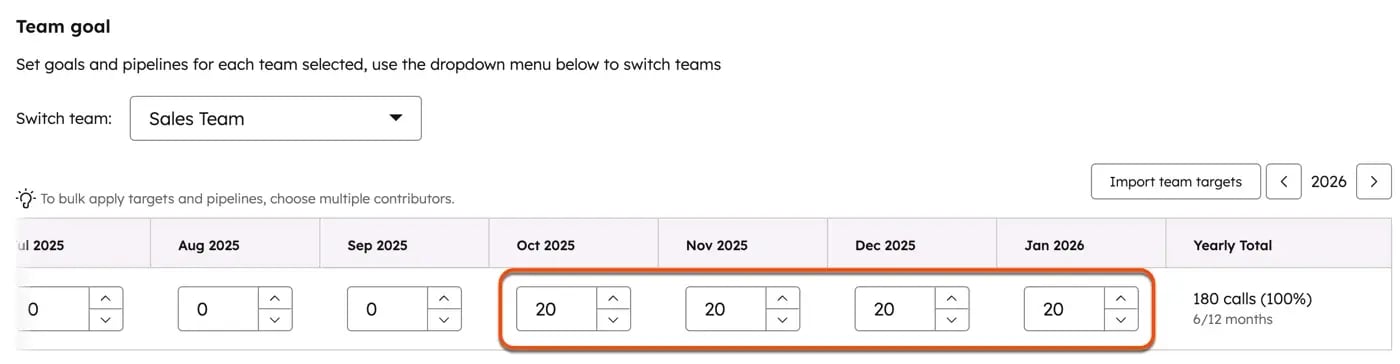
Critical: Goal timing must match your forecast period exactly. Quarterly goals won't appear in a monthly view.
What's Next?
After setup, move to data hygiene workflows to keep your forecast clean.
Data Hygiene: The Foundation for Accurate Forecasts
AI-driven forecasting can reduce errors by 20 to 50 percent—yet many teams still struggle with data access (McKinsey).
Bad forecast data is rarely a software bug—it's a process gap.
The core issue: A "This Month" forecast with past-dated deals makes no sense. HubSpot warns you but won't remove them.
Key workflows to build:
-
Stale Deal Flow:
- IF no activity for 14 days → Change category to "Omitted"
- IF close date is in the past → Create task for rep
-
Close Date Check:
- IF Forecast Category = "Commit" AND Close Date ≠ Current Period → Alert owner
-
Stage Parking Guard:
- IF deal in same stage > 21 days → Create manager review task
The "Hidden Deal" problem: Deals marked "Commit" with close dates outside the viewed period vanish from rollups. Managers believe they have revenue that isn't appearing. This is the top source of forecast confusion.
How Reps Submit Forecasts (Day-to-Day Workflow)
Setup is one-time. Submission is ongoing. This section covers what happens every forecast period.
What Is Forecast Submission?
Forecast submission is when reps commit to a number—separate from the deals in their pipeline.
Think of it this way:
- Pipeline value: What the system calculates from deals
- Submitted forecast: What the rep believes they'll actually close
HubSpot compares both. Managers see the gap between "what the data shows" and "what the rep commits to."
Why this matters: A rep might have $500K in pipeline but know that two key deals are slipping. Their submitted forecast of $350K tells managers the real story.
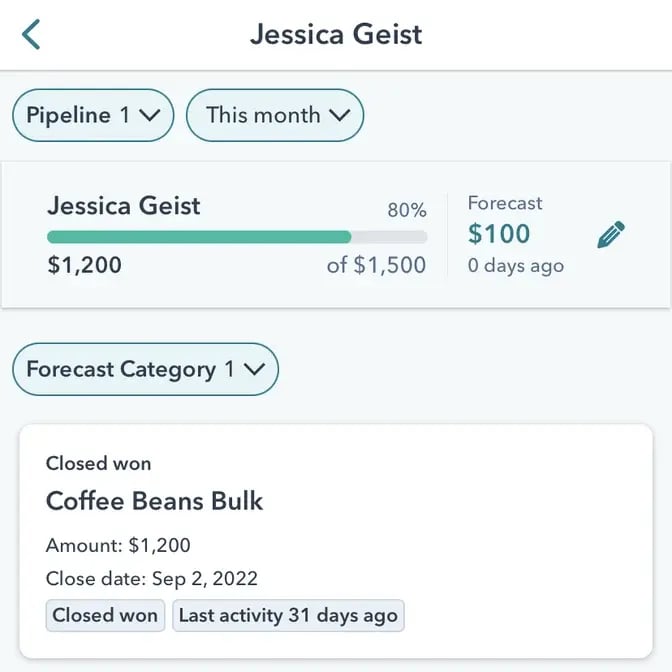
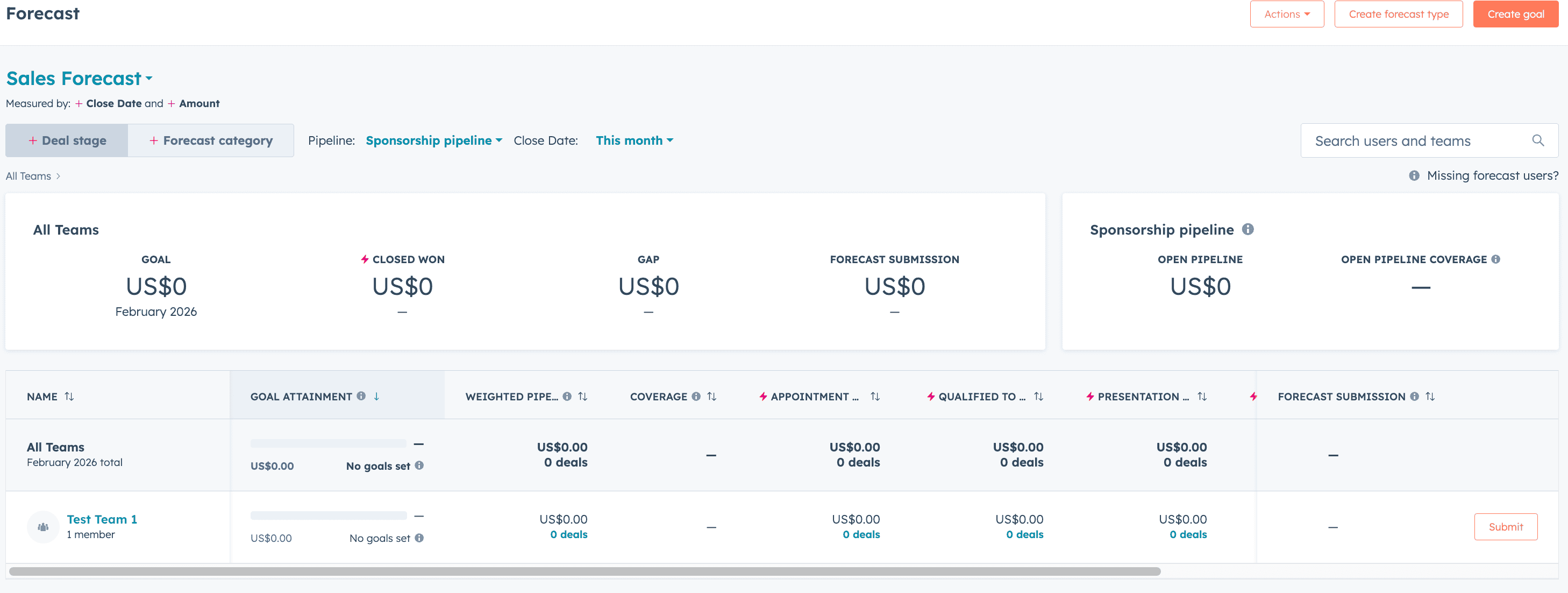
Caption: "Access forecasting from the Sales menu"
Accessing the Forecast View
- Navigate to Sales → Forecasts in the main menu
- You'll see your team's forecast dashboard with rollups by owner
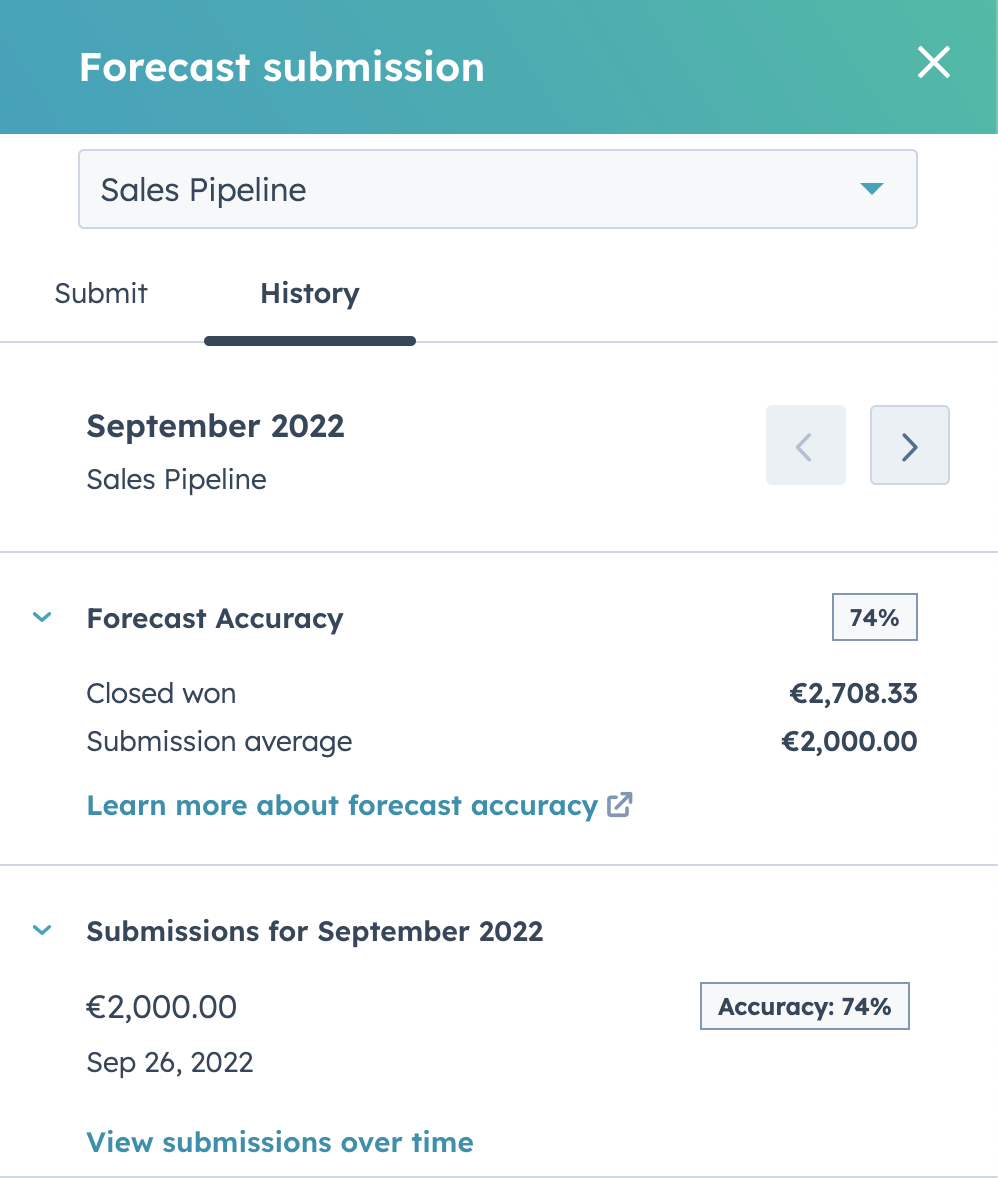
Selecting a Pipeline
If you run multiple pipelines, select the one you want to forecast:
- Click the Pipeline dropdown in the top-right
- Choose the pipeline tied to your goals
- The view refreshes with that pipeline's data
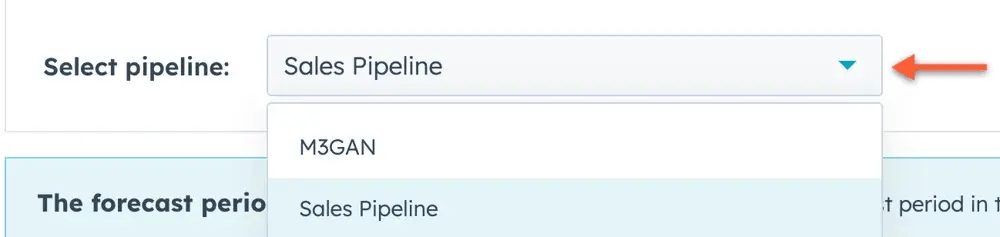
Note: Goals are pipeline-specific. Make sure you're viewing the pipeline where your goal is assigned.
The Forecast Submission Process
Here's how reps submit their forecast each period:
Step-by-step:
- Open your forecast row (your name in the Forecasts table)
- Review your deal totals by category (Commit, Best Case, Pipeline)
- Click the Submit button
- Enter your committed number for the period
- Optionally add a note explaining your confidence
- Click Save
Why Submission Matters
Submitted forecasts create accountability:
- Manager visibility: Rollups show team totals based on submissions, not just pipeline math
- Historical tracking: HubSpot tracks submission changes over time—you can see if reps consistently over- or under-commit
- Board-ready numbers: Exec reports use submitted forecasts, not raw pipeline values
Common mistake: Reps who never submit leave managers guessing. Build submission into your weekly forecast cadence.
When to Submit
Most teams follow this rhythm:
| Cycle | When to Submit | What Managers Check |
|---|---|---|
| Weekly | Every Monday | Week-over-week changes |
| Monthly | 1st of month + mid-month | Accuracy vs. actual close |
| Quarterly | Month 1, 2, 3 of quarter | Trending toward goal |
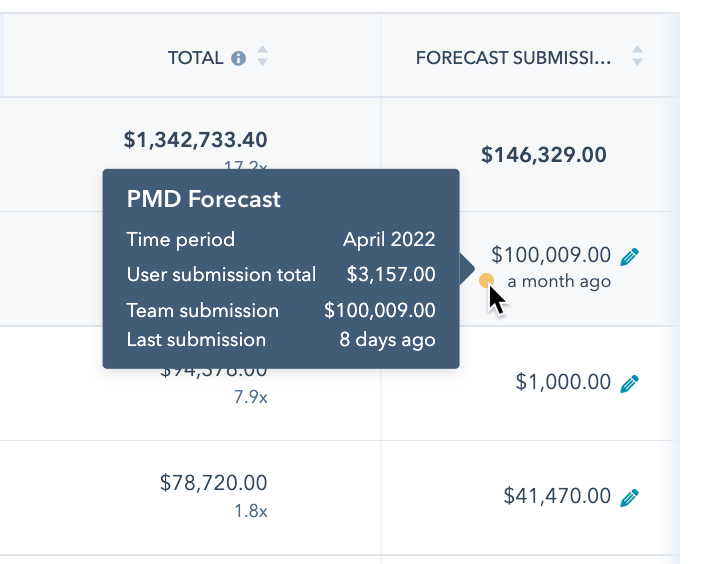
Pro tip: Submission without deal updates is noise. Require reps to review and update their deal stages/categories before submitting their forecast number.
Multi-Pipeline Setup and the View Gap
Teams running more than one sales motion face a specific limit.
HubSpot needs goals linked to specific pipelines. No built-in view sums rep results across all pipelines in one row.
What this means:
- Managers switch between "New Business" and "Renewals" views
- The "Single View" promise breaks at the forecast level
- RevOps builds custom reports for exec visibility
The Sales Workspace helps organize views but doesn't solve the gap.
Common problem: Goals not appearing in the forecast tab.
The 90% fix: Timing mismatch.
- You set quarterly goals
- Manager views forecast set to monthly
- Result: Goal column shows empty
HubSpot won't split quarterly goals into months. The view filter must match the goal setting exactly.
Checklist for missing goals:
- Does goal pipeline match viewed pipeline?
- Does goal timing (monthly/quarterly) match view filter?
- Is goal assigned to the correct user or team?
- Does goal year match viewed period?
Deal Splits: Setup and Reporting Limits
HubSpot's deal splits let up to 5 users share a deal with set amounts or percentages.
The key difference:
| Feature | Deal Splits | Deal Collaborators |
|---|---|---|
| Purpose | Revenue credit | View access |
| Forecast Impact | Included in user forecast | No credit |
| Use Case | Commission tracking | Project access |
The common mistake: Using Collaborators for commission tracking. Collaborators get access, not revenue credit. This causes pay disputes and forecast errors.
The reporting catch: HubSpot changed how split records work.
- Before: 100% split records created for single-owner deals
- Now: No split record for single-owner deals
This breaks reports using "Deal Split" as the main object. Building complex joins to combine single-owner and split deals requires advanced reporting skills.
HubSpot vs. Salesforce: Which Fits Your Team?
The choice isn't about math—both do the same sums. It's about approach.
HubSpot's way: Easy use first.
- Clean interface, inline edits, few clicks
- Reps update faster, data stays fresh
- Forecasting is included in core Sales Hub
- Marketing alignment built in
Salesforce's way: Full control first.
- Matrix teams independent of HR structure
- Quotas by product line, complex splits
- Custom fiscal years
- Granular field controls
| Area | HubSpot Wins | Salesforce Wins |
|---|---|---|
| User uptake | ✓ Modern UI | |
| Matrix teams | ✓ Flex structure | |
| Quota depth | ✓ Product quotas | |
| Total cost | ✓ Core license | |
| Custom objects | ✓ Forecast on anything |
When to pick each:
- HubSpot fits: Growth teams (20–500 people), fast sales, lean RevOps
- Salesforce fits: Matrix teams, product quotas, complex overlay setups
Hitting limits in HubSpot? Overlay teams that need their own forecasts can't be set up without heavy custom work.
The 5-Point Check for Missing Forecast Data
When forecasts look empty, run this list before calling support:
1. Access Rights Does the user have Forecast access turned on in Users & Teams?
2. Paid Seat Does the user have a Sales Hub Pro or Enterprise seat? Free seats can't forecast.
3. Goal Match Does the Revenue Goal match the exact pipeline AND year/timing of the view?
4. Close Date Are deals set to close in the period you're viewing? Past-dated deals are the top error.
5. Category Mapping Are deals in a stage mapped to "Omitted"? They vanish from rollups.
Most "bugs" reported to HubSpot Support are setup mismatches. This check catches 90% of issues.
Adding AI Forecasts to Manual Ones
The field is shifting from "Manager Override" to "AI Validation."
HubSpot's AI Forecast gives a machine number next to manual picks. Top teams reach 90–95% forecast accuracy with AI help (Forecastio).
The better review approach:
- Old: "What is your number?"
- New: "Why does your number differ from the AI's?"
Only 20% of sales teams forecast within 5% of results (Xactly). Companies embedding AI in sales outperform peers with 15–30% higher ROI (McKinsey). AI helps close that gap by showing when rep picks don't match data patterns.
RevOps focus: Make sure signals (email clicks, page views) feed the AI model right. Output quality depends on input quality.
Conclusion
Your path to complete HubSpot forecasting setup:
-
Learn the structure first
- Deal stages track process; forecast categories track confidence
- The tool filters and rolls up—it doesn't just sum
-
Make clear setup choices
- Turn off category auto-map for trained teams
- Match goal timing with view filters exactly
- Build data cleanup workflows before enabling forecasting
-
Know your limits
- No built-in cross-pipeline total view
- Split reporting needs advanced skills
- Overlay teams need custom workarounds
-
Fix problems step by step
- Check access, seats, goal match, close dates, category mapping
- Most "bugs" are setup mismatches
-
Pick the right platform
- HubSpot wins on ease and cost
- Salesforce wins on complex structures
Your HubSpot forecasting setup only works when the config matches your real process. Get the structure right—the features follow.